
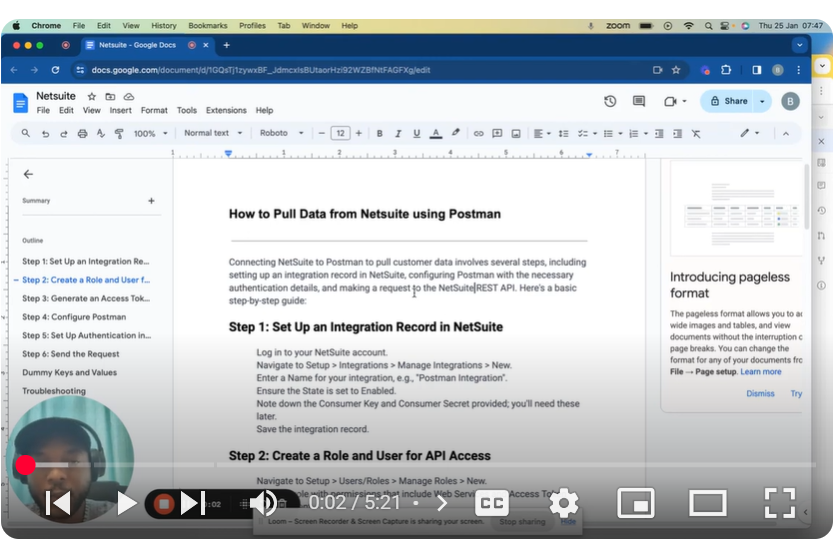
Dive into the world of CRM integration with our latest tutorial ‘Mastering CRM Integration: How to Pull Data from Netsuite Using Postman.’ This video provides a comprehensive guide to extracting data from Netsuite into Postman, ideal for developers and IT professionals looking to streamline their data management processes.
🔍 What You’ll Discover:
Integration Setup: Learn the initial steps to integrate Netsuite with Postman, including creating roles and users specifically for API access.
Authentication Process: A detailed walkthrough of the authentication setup in Postman to ensure secure data access.
Creating Requests: Step-by-step instructions on how to craft a request in Postman, focusing on customer data retrieval.
Utilizing Netsuite Structure: Insight into the structure of Netsuite and how to utilize account IDs and endpoint configurations for efficient data pulling.
Practical Demo: A basic demonstration of setting up a request in Postman, complete with dummy data to illustrate the process.
📚 Resources Provided: Throughout the video, important data, instructions, and documentation links will be shared to assist you in your integration journey.
📖 Chapters:
00:00 Introduction
00:29 Setting up Integration
01:18 Authentication in Postman
And more…
👨💻 Whether you’re new to Postman or looking to enhance your CRM integration skills, this video will equip you with the knowledge to efficiently pull data from Netsuite.
👍 If you find this tutorial useful, please give it a thumbs up, share, and subscribe for more in-depth tech guides.
💬 We Love to Hear From You! Got questions or feedback? Drop them in the comments section below. Your input helps us improve and tailor our content to your needs.
CRMIntegration #Netsuite #PostmanTutorial #DataManagement #APIAccess #TechTutorial”
SUBSCRIBE
https://www.youtube.com/@BACHOTMPUNGA…
Need help? Ping me on LinkedIn
/ bachot-mpunga-bashala-b834191b
DOCUMENTATION STEPS
Connecting NetSuite to Postman to pull customer data involves several steps, including setting up an integration record in NetSuite, configuring Postman with the necessary authentication details, and making a request to the NetSuite REST API.
Here’s a basic step-by-step guide:
📖 Step 1: Set Up an Integration Record in NetSuite
Log in to your NetSuite account.
Navigate to Setup – Integrations – Manage Integrations – New.
Enter a Name for your integration, e.g., “Postman Integration”.
Ensure the State is set to Enabled.
Note down the Consumer Key and Consumer Secret provided; you’ll need these later.
Save the integration record.
📖 Step 2: Create a Role and User for API Access
Navigate to Setup – Users/Roles – Manage Roles – New.
Create a role with permissions that include Web Services and Access Token Management.
Assign this role to a user or create a new user specifically for API access.
📖 Step 3: Generate an Access Token
Log in as the user assigned to the API role.
Navigate to Setup – Users/Roles – Access Tokens – New.
Select the application you created in Step 1, the user, and the role, then click Save.
Note down the Token ID and Token Secret.
📖 Step 4: Configure Postman
Open Postman and create a new request.
Set the request type to GET.
Enter the URL for the NetSuite REST API endpoint to pull customer data. The format is usually:
https://{account_id}.suitetalk.api.netsuite.com/services/rest/record/v1/customer
Replace {account_id} with your actual NetSuite account ID, often referred to as the portal number.
📖 Step 5: Set Up Authentication in Postman
In the Postman request, go to the Authorization tab.
Select Type as OAuth 1.0.
Enter the following details from your NetSuite integration and user tokens:
Consumer Key: From Step 1
Consumer Secret: From Step 1
Token: From Step 3 (Token ID)
Token Secret: From Step 3 (Token Secret)
Signature Method: HMAC-SHA256
Timestamp: Leave as is (Postman generates this automatically)
Nonce: Leave as is (Postman generates this automatically)
Version: 1.0
Realm: Your NetSuite account ID
Ensure the Add params to header option is checked.
📖 Step 6: Send the Request
Click Send to make the request to NetSuite.
If everything is set up correctly, you should receive a JSON response with customer data from NetSuite.
Dummy Keys and Values
Consumer Key: YourConsumerKey
Consumer Secret: YourConsumerSecret
Token ID: YourTokenID
Token Secret: YourTokenSecret
NetSuite Account ID/Portal Number: 123456
Troubleshooting
Ensure your NetSuite role has the necessary permissions.
Double-check the OAuth settings in Postman.
Verify that the account ID and endpoint URL are correct.
LINKS
https://system.netsuite.com/help/help…
Leave your comment