
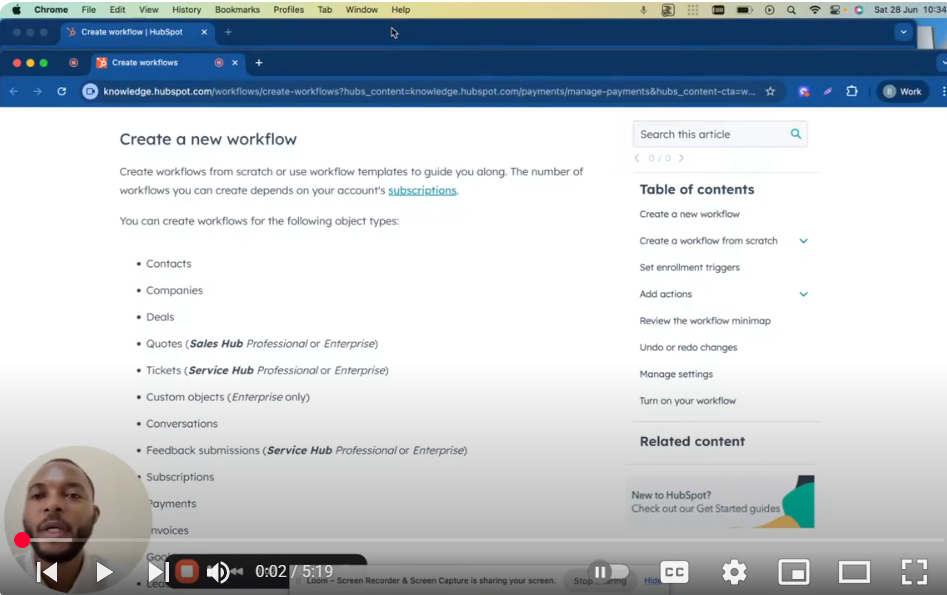
🚀🌟 Video Overview: Learn how to create an automated workflow that:
1️⃣ Triggers when a client’s payment succeeds.
2️⃣ Sends internal emails to sales reps/contact owners instantly.
3️⃣ Notifies clients with payment confirmation emails.
4️⃣ Creates follow-up tasks for onboarding next steps. Perfect for CRM users (HubSpot, Salesforce, etc.) or automation tools like Zapier/Make!
⏱️ Timestamps: 0:00 – Intro & Use Case: Automate payment alerts + client onboarding
0:52 – Setting up the “Payment Succeeded” trigger
1:44 – Configuring internal emails for sales reps
2:41 – Sending client payment confirmation emails
3:06 – Creating tasks for contact owners (onboarding next steps)
4:05 – Customizing reminders, priorities & due dates
4:24 – Advanced options (line items, custom criteria)
5:05 – Recap & real-world applications
🔧 Key Steps Covered: Trigger: Payment Status = Succeeded Actions: Send internal email to contact owner/sales rep. Email client: “Payment Received” confirmation.
Create task: “Onboarding Next Steps” with custom deadlines/priorities. Pro Tips: Use dynamic fields (client name, payment ID) + set task reminders!
🚀 Tools Mentioned: Workflow builders (e.g., HubSpot, Zapier, Make.com) Payment gateways (Stripe, PayPal, etc.) CRM systems for contact/task management
💬 Template Snippets (Used in Video):
📧 Internal Email to Sales Rep: “Hi [Owner Name], This is to inform you that [Client Name] (your contact) just made a payment.
Next step: Begin onboarding!” ✅ Client Payment Confirmation: “Dear [Client Name], We’ve received your payment – thank you! Your next onboarding step: [Link/Instructions]”
📅 Onboarding Task Description: “Get in touch with [Client Name] to complete onboarding. Priority: High | Due Date: [3 Days from Now]”
👍 Support the Channel! If this saved you time, give this video a thumbs up! 🔔 SUBSCRIBE for more insights: / @bachotmpungabashala
Leave your comment