
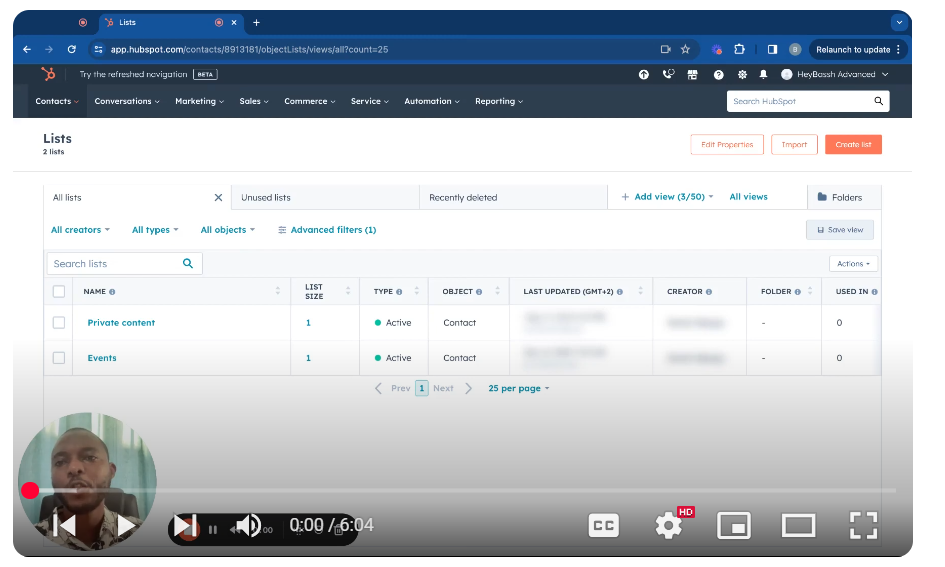
Dive into the world of efficient contact management with HubSpot CRM’s List Creation feature. This segment of our “Mastering HubSpot CRM” series is dedicated to teaching you the step-by-step process of creating various types of lists within HubSpot. Lists are vital for segmenting your contacts, companies, deals, and even custom objects based on specific criteria, ensuring personalized and targeted interactions. 🛒 Key Highlights: Versatile List Types: Learn to create Contact-based, Company-based, Deal-based, and Custom Object-based lists, each serving unique segmentation needs. Dynamic vs. Static Lists: Understand the difference between Active (dynamic) lists, which update automatically as record properties change, and Static lists, which capture a snapshot in time. Advanced Filtering: Master the art of setting up precise filters using contact properties and other associated object properties to refine your list criteria. Practical Use Cases: Discover how these lists can be leveraged for workflows, membership systems, gated content, and smart content creation, enhancing your marketing and sales strategies. 🚀 Getting Started: Begin by navigating to the Lists section under Contacts in your HubSpot dashboard. Follow our straightforward guide to create your first list, choose the right type, set up filters, and save your list for immediate use. 💡 Pro Tip: Combine list creation with HubSpot’s powerful workflow tool to automate and personalize your marketing and sales efforts, making every interaction count. 📺 Found this tutorial helpful? Hit the like button, share with your network, and subscribe for more insightful tutorials on leveraging HubSpot CRM to its fullest potential.Unlock the full potential of your HubSpot CRM with custom object creation! In this tutorial, we dive into the process of crafting bespoke objects tailored to your unique business needs. Custom objects in HubSpot are a powerful feature that allow you to store and organize data specific to your operations, extending beyond the default objects like contacts and companies. 🔧 Key Steps: 1. Navigate to Settings: Access the settings in your HubSpot account to begin the creation process. 2. Find Custom Objects: Under the Objects tab, you’ll find the option to manage and create custom objects. 3. Define Your Object: Start by naming your custom object. For instance, if you’re managing a medical practice, you might create an object named “Doctor.” 4. Add Properties: Customize your object by adding properties such as ‘Name’ and ‘Profession,’ and set the parameters for each, like making them unique or required. 5. Utilize Your Object: Once created, your custom object will appear in the CRM, ready for you to add records such as individual doctors, each with their specific details. 🛠️ Practical Use-Cases: Manage diverse data sets unique to your industry, such as medical practitioners, real estate listings, or educational courses. Streamline processes by integrating custom data directly into your CRM, enhancing the relevance and functionality of your database. Facilitate better organization, tracking, and reporting on specialized data that doesn’t fit into standard CRM categories. 💡 Pro Tips: Plan your custom objects carefully to ensure they align with your business processes and reporting needs. Regularly review and update your custom objects to keep them relevant as your business evolves. 📺 Found this guide helpful? Give it a thumbs up, share it with your network, and subscribe for more insightful tutorials on mastering HubSpot CRM’s extensive capabilities. SUBSCRIBE / @bachotmpungabashala Need help? Ping me on LinkedIn / bachot-mpunga-bashala-b834191b
Mastering HubSpot CRM: List Creation
Leave your comment