
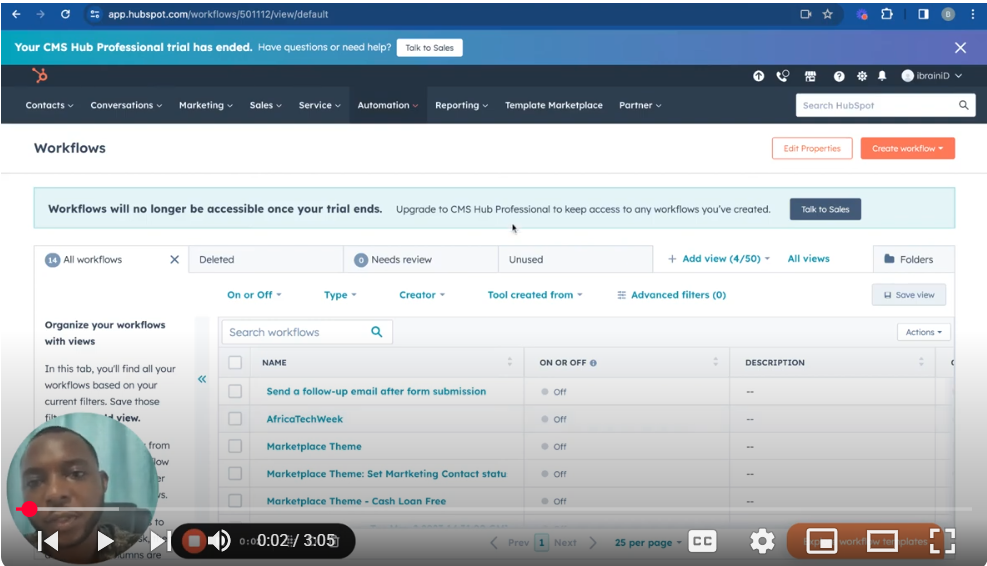
Welcome to Part 3 of our HubSpot Workflow Mastery series! In this episode, we dive into how to set up automated notifications to inform team members immediately when a form is submitted on your website. This feature is invaluable for maintaining prompt communication within your team and ensuring no opportunity slips through the cracks.
🔧 What You’ll Learn:
Accessing Workflow Templates: Navigate through HubSpot’s automation feature to access workflow templates.
Selecting the Right Template: How to choose the ‘Tell Team Members When a Form is Submitted’ template and customize it for your needs.
Form Selection: The process of selecting the specific form that triggers the notification workflow.
Setting Up Notifications: Detailed instructions on how to set up in-app notifications for individual team members or groups, ensuring they’re alerted the moment a form is submitted.
Personalization and Review: Tips on personalizing your notification content with personalization tokens and reviewing your workflow before activation.
📝 Key Steps Covered:
00:00 Introduction to Workflow Automation
00:10 Creating a Workflow from Templates
01:08 Selecting and Configuring the Form
01:17 Adding Notification Actions
02:07 Customizing Notifications for Team Members
👥 Ideal For: This tutorial is perfect for HubSpot users looking to improve their team’s responsiveness to new leads, streamline internal communications, and enhance the efficiency of their sales or service processes.
👍 Found this tutorial helpful? Give it a thumbs up, share it with your team, and subscribe for more insightful HubSpot workflow tutorials.
🔍 Missed the previous parts? Get caught up: Part 1: • Mastering Hubspot Workflow Part 1: Send a … Part 2: • Mastering Hubspot Workflow Part 2: Send an… 💬 Feedback or Questions? We love hearing from our viewers! Drop your comments below if you have any questions or suggestions for future tutorials. SUBSCRIBE https://www.youtube.com/@BACHOTMPUNGA…
Leave your comment